
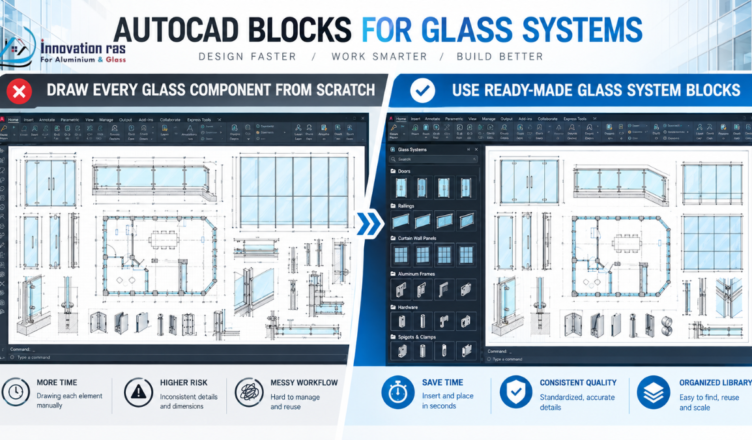
Drawing the same glass panel, clamp, or door over and over is exhausting. AutoCAD blocks for glass systems solve this problem in seconds. Instead of redrawing parts from scratch, you insert a ready-made object and move on.
This guide explains everything in plain English. You do not need CAD training to follow along. By the end, you will know what blocks are, where to find them, and how to build your own.
Moreover, if you run a blog or a small glass business, you will learn how to share blocks online. That is a smart way to attract visitors to your website.
What Are AutoCAD Blocks for Glass Systems?
AutoCAD blocks for glass systems are reusable drawing objects made for glazing work. They represent real products, such as glass panels, aluminum frames, hinges, and railings. You insert them into a drawing instead of redrawing each part.
Every beginner should understand this concept first. Once it clicks, the rest of CAD feels much easier.
AutoCAD blocks explained in plain English
A block is a group of lines, arcs, circles, and text saved as one object. Imagine a rubber stamp. You design it once, then press it onto the page as many times as you like.
For example, a glass door needs a hinge, a handle, and a lock. Instead of drawing those parts every time, you save them as blocks. Then you drop them in with a few clicks.
Here is what a typical block contains:
- Geometry: the lines and shapes that form the part
- Base point: the spot where the block attaches to your drawing
- Name: a label so you can find it later
- Attributes (optional): extra data like glass thickness or finish
Therefore, a block is more than a picture. It is a smart, reusable piece of information.
Blocks vs. regular drawing objects
Regular objects are loose lines and shapes. Each one must be selected and edited on its own. As a result, large drawings become slow and confusing.
Blocks work differently. You select the whole group with one click. Then you move, rotate, copy, or scale it together.
Consider this comparison:
- Regular objects: edited one by one, easy to lose, heavy on large files
- Blocks: edited as a group, easy to organize, lighter on file size
Moreover, blocks keep a link to their original definition. If you change that definition, every copy in the drawing can update automatically. This saves enormous time on big projects.
However, loose objects still have a place. You use them for one-off details that you will never repeat. Blocks are best for anything that appears more than once.
Static blocks vs. dynamic blocks
A static block has a fixed size and shape. It never changes unless you edit the original. For instance, a 12 mm spigot block always shows a 12 mm spigot.
A dynamic block is flexible. It includes parameters and actions that let you stretch, flip, rotate, or choose from preset sizes. Therefore, one block can replace dozens of static versions.
Here is a simple example. Imagine a glass panel block. With a dynamic version, you can pull it from 600 mm wide to 1,200 mm wide. You can also change the height from a dropdown list.
Use this quick guide to choose:
- Static blocks: best for small, fixed parts such as clamps and screws
- Dynamic blocks: best for panels, doors, and frames that come in many sizes
Dynamic blocks keep your library smaller. In turn, you spend less time searching for the right file.
Why Glass Professionals Need Ready-Made Blocks
Glass projects depend on accuracy. A small error can mean a wasted panel and a lost day. That is exactly why AutoCAD blocks for glass systems have become standard tools in the industry.
Ready-made blocks bring speed, accuracy, and polish to every drawing. Let’s look at each benefit.
Save hours on repetitive drawings
Glass details repeat constantly. A single balcony may use twenty identical spigots. A storefront may use the same mullion profile along the entire facade.
Drawing each item by hand is slow and boring. However, with blocks, you insert the part in seconds. Consequently, a task that took an hour may take only minutes.
Here is where the biggest time savings appear:
- Hardware placement: hinges, clamps, and patch fittings
- Repeating sections: mullions, transoms, and frame profiles
- Title block details: notes, symbols, and standard callouts
Additionally, faster drawings mean faster quotes. Clients appreciate quick turnaround, and you can take on more projects.
Keep every drawing consistent
Consistency builds trust. When every clamp looks identical across all sheets, your plans feel organized and reliable.
Blocks guarantee this uniformity. Everyone on your team uses the same approved parts. Therefore, nobody invents their own version of a standard detail.
This also helps installers. They see the same symbol and the same dimensions in every drawing. As a result, they make fewer assumptions on site.
Furthermore, consistent drawings are easier to review. Managers and clients spot issues faster when the layout follows a familiar pattern.
Reduce costly measurement mistakes
Glass is expensive. Tempered and laminated panels cannot be reshaped after cutting. A wrong measurement often means ordering a new panel.
Manual redrawing invites errors. You might mistype a dimension or misplace a hole. In contrast, a verified block carries the correct data every time.
Using trusted AutoCAD blocks for glass systems removes much of that risk. You reuse proven geometry instead of recreating it. For example, a patch fitting block from the manufacturer already includes exact hole positions.
Still, always check block dimensions against the product data sheet. Trust, but verify.
Impress clients with clean, professional plans
Clients judge your skills by your drawings. Messy plans suggest careless work. Clean plans suggest careful, dependable craftsmanship.
Blocks make your drawings look sharper. Lines are crisp, symbols are standard, and details are clear. In turn, clients feel more confident hiring you.
This matters for small businesses in particular. A polished drawing set helps you compete with larger companies. Therefore, strong CAD habits can directly increase your win rate.
Types of AutoCAD Blocks for Glass Systems
The glass industry covers many products. As a result, blocks come in many categories. Knowing these types helps you build a well-organized library.
Below are the most common groups.
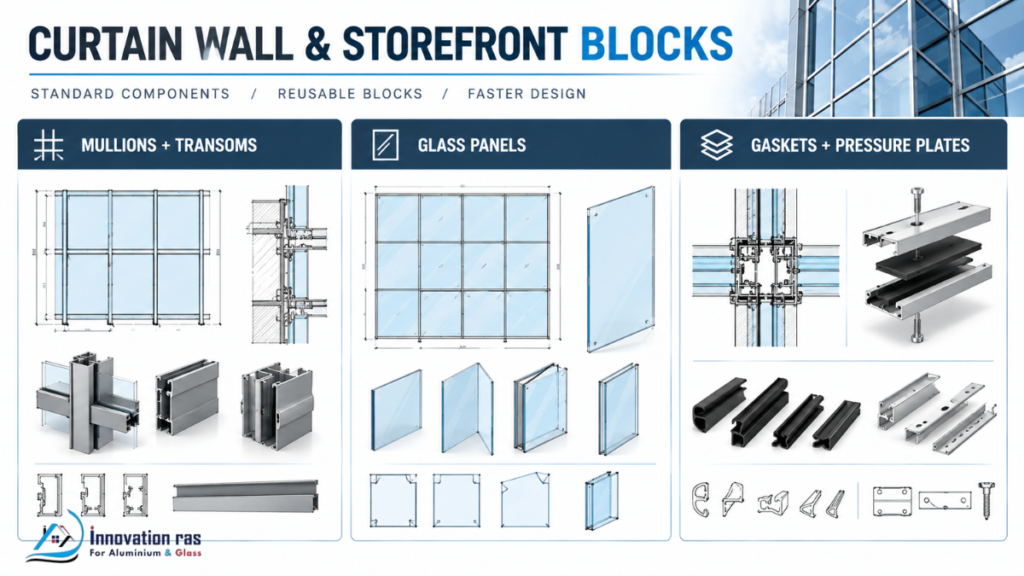
Curtain wall and storefront blocks
Curtain walls are non-structural facades made of glass and metal frames. Storefronts are the street-level versions you see on shops and offices. Both rely heavily on repeating profiles.
These blocks usually include:
- Mullions and transoms: the vertical and horizontal frame members
- Glazing units: single, double, or triple glass layers
- Gaskets and pressure plates: the sealing and fixing parts
Architects often need them in plan, elevation, and section views. Therefore, a good block set includes all three.
Frameless glass railing and balustrade blocks
Frameless railings use thick glass panels with minimal hardware. They are popular on balconies, staircases, decks, and pool fences.
Common blocks in this group include:
- Base shoes (channels): the U-shaped track that holds the glass
- Spigots: small posts that clamp each panel
- Standoffs: side-mounted fittings fixed to a wall or slab
Section views matter most here. They show how the glass is anchored and how deep the fixing goes. Consequently, installers rely on them heavily.
Glass door and sliding door blocks
Door blocks cover several styles. These include swing doors, pivot doors, folding doors, and sliding systems.
Many door blocks also show:
- Door swing arcs to indicate the opening direction
- Track and rail details for sliding systems
- Handle and lock positions for hardware coordination
Dynamic door blocks are especially useful. You can resize one block to fit many openings. Moreover, you can flip it left or right in a single click.
Shower enclosure and partition blocks
Bathroom and office projects often use glass screens and partitions. These blocks show how the glass meets walls, floors, and other panels.
Typical details include:
- Glass thickness, commonly 8 mm, 10 mm, or 12 mm
- Wall channels and clamps that secure the panel
- Hinges and door seals for enclosure doors
In addition, many shower blocks include water-seal strips. These small details help show how the enclosure stays dry.
Skylight, window, and facade details
Overhead and façade glazing needs extra care. Water, wind, and weight all affect the design. Therefore, these blocks focus on performance as much as appearance.
For example, skylight blocks may show:
- Slope angles for proper drainage
- Sealing and flashing details to prevent leaks
- Structural supports that carry the glass load
Window blocks, on the other hand, display frames, sashes, and glass layers. Section details also reveal thermal breaks and insulation. Together, these blocks help communicate how the glazing system performs.
Hardware blocks (patch fittings, hinges, spigots, clamps)
Small parts make big differences. Hardware blocks represent the fittings that hold glass in place.
Here are the main types:
- Patch fittings: corner or edge connectors for frameless doors
- Hinges: glass-to-wall or glass-to-glass pivot points
- Spigots: post-style clamps for railings
- Clamps: general holders for panels and shelves
Manufacturers usually provide these blocks for free. They include exact dimensions and hole positions. For that reason, they are some of the most reliable AutoCAD blocks for glass systems you can download.
How to Insert AutoCAD Blocks for Glass Systems (Step by Step)
Inserting a block is one of the easiest skills in CAD. You only need a few commands and a little care. Follow the steps below, and you will place AutoCAD blocks for glass systems correctly the first time.
Before you start, open your drawing and save a backup copy. Then choose the method that suits you best.
Using the INSERT command
The INSERT command is the classic way to add a block. It works in every version of AutoCAD.
- Type INSERT in the command line and press Enter.
- Select the block from the list, or click Browse to find a saved DWG file.
- Click on the drawing to choose the insertion point.
- Set the scale and rotation if needed.
- Confirm, and the block appears.
For example, imagine you need a spigot for a balcony railing. You type INSERT, pick the spigot block, and click along the baseplate line. Then you repeat the process for each post.
Pro tip: Use the COPY or ARRAY command after the first insertion. As a result, you can place twenty spigots in seconds instead of inserting each one by hand.
Using the Tool Palette and DesignCenter
Two other tools make block placement even faster. Both are perfect for beginners.
The Tool Palette is a side panel filled with clickable blocks. Press Ctrl+3 to open it. Then simply drag a block into your drawing.
Here is why many designers love it:
- One-click placement with no typing
- Custom tabs for doors, railings, and hardware
- Quick access to the blocks you use every day
DesignCenter works differently. Press Ctrl+2 to open it. It lets you browse blocks stored inside other drawings. Therefore, you can reuse content from old projects without opening those files.
In short, use the Tool Palette for your favorites. Use DesignCenter when you need to dig through past work.
Setting the correct scale and units
Scale mistakes cause the most frustration. Fortunately, they are easy to prevent.
First, check your drawing units. Type UNITS and press Enter. Most glass drawings use millimeters, while some US projects use inches.
Next, look at the block’s insertion units. If they do not match your drawing, AutoCAD will rescale the block. Usually, this works well. However, a mismatch in the source file can still produce odd results.
Watch for these warning signs:
- The block looks tiny or enormous on screen
- The glass thickness seems wildly wrong
- Dimensions do not match the product data sheet
If you spot any of these, undo the insertion. Then check the units and try again. Finally, measure one dimension with the DIST command to confirm accuracy.
How to Create Your Own Custom Glass Blocks
Sometimes you cannot find the exact part you need. Fortunately, making your own AutoCAD blocks for glass systems is simple. Plus, custom blocks give you full control over detail and quality.
Drawing the glass component
Start by drawing the component at its real-world size. Use the manufacturer’s data sheet for accurate dimensions. Guesswork leads to errors later.
Follow these simple rules:
- Keep it clean. Use only the lines you truly need.
- Use correct units. Millimeters work best for glass.
- Draw on Layer 0. This lets the block adopt the layer where you insert it.
- Close all shapes. Gaps cause problems when hatching.
Moreover, avoid adding unnecessary details such as tiny screw threads. Extra lines only increase file size. Therefore, simpler drawings give you faster, lighter blocks.
Using the BLOCK and WBLOCK commands
Once your drawing is ready, turn it into a block. AutoCAD offers two commands for this.
The BLOCK command saves the object inside your current drawing. Here is how:
- Type BLOCK and press Enter.
- Enter a clear name, such as GLASS-CLAMP-10MM.
- Click Pick Point and choose a logical base point.
- Click Select Objects and choose your drawing.
- Click OK.
The WBLOCK command works similarly. However, it saves the block as a separate DWG file. As a result, you can share it, back it up, or use it in other projects.
Which should you use? Use BLOCK for one-time needs inside a single drawing. Use WBLOCK when you want to build a reusable library.
Adding attributes (thickness, glass type, size)
Attributes are text labels linked to a block. They store useful data without cluttering your drawing. For glass work, they are extremely handy.
For example, you can store:
- Glass thickness (such as 10 mm or 12 mm)
- Glass type (tempered, laminated, or insulated)
- Panel size (width and height)
- Finish or coating (clear, frosted, or tinted)
To add one, type ATTDEF and fill in the tag, prompt, and default value. Then include the attribute when you create the block.
Later, you can extract this data into a table using DATAEXTRACTION. Consequently, you can produce a glass order list almost automatically. This saves hours and prevents ordering errors.
Turning a block into a dynamic block
Dynamic blocks add flexibility. One block can handle many sizes and options.
Here is the basic process:
- Type BEDIT to open the Block Editor.
- Select your block and click OK.
- Add a parameter, such as Linear for width.
- Add an action, such as Stretch, linked to that parameter.
- Click Save Block, then close the editor.
After that, a small grip appears on the block. You can drag it to resize the glass panel. In addition, you can add a visibility parameter to switch between options, such as different handle styles.
Keep in mind that AutoCAD LT can generally use dynamic blocks but may not allow you to create them. Check your version before you start.
Where to Find Free and Paid Glass System Blocks
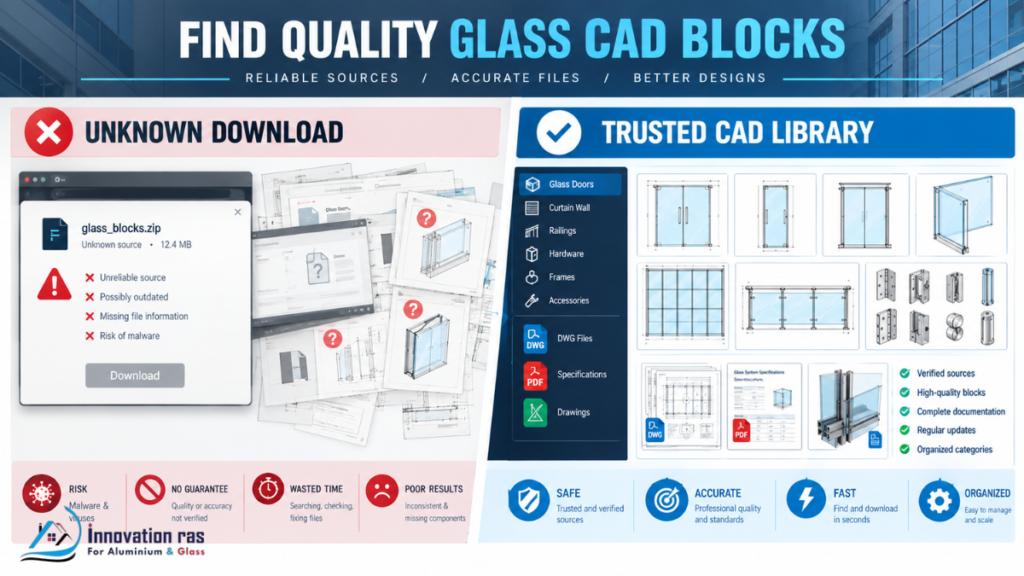
You do not always need to build from zero. Many sources offer ready-made options. However, quality varies widely, so choose carefully.
Manufacturer and supplier websites
Hardware and profile manufacturers often publish free CAD files. These are usually the most accurate sources. After all, they come directly from the people who make the product.
Look for sections labeled Downloads, Technical Resources, or CAD/BIM Library. Files typically come in DWG format. Many also include 3D models and specification sheets.
An added benefit is that these blocks reflect real products. Therefore, your drawings match what will actually be installed.
Trusted CAD libraries
Several online libraries host thousands of blocks. Some are free, while others charge a subscription or per-file fee.
When using these libraries, keep these tips in mind:
- Search by product type to narrow the results
- Read the license before using files commercially
- Check user reviews or download counts when available
- Prefer DWG files for the smoothest AutoCAD experience
Free libraries are great for general shapes. Paid libraries often offer cleaner, better-organized blocks. Choose based on your budget and project needs.
Tips for checking block quality before downloading
Not every file is reliable. Therefore, inspect each block before trusting it.
Use this quick checklist:
- Dimensions match the official product data sheet
- Geometry is clean, with no stray lines or duplicates
- Layers are sensible and well named
- File size is reasonable, not bloated
- The source is a known, reputable website
Additionally, always test a new block in a blank drawing first. Run the AUDIT command to catch hidden errors. This simple habit protects your real projects from corrupted files.
Best Practices for Organizing Your Block Library
A messy library defeats the purpose of using blocks. However, a few simple habits keep everything neat and easy to search.
Naming conventions that make sense
Use clear, consistent names. For example, GLASS-RAIL-SPIGOT-12MM tells you exactly what the block is. In contrast, Block1 tells you nothing.
A good naming pattern includes:
- Category: GLASS, DOOR, or HARDWARE
- Item: SPIGOT, HINGE, or CLAMP
- Size or variant: 10MM or 12MM
Avoid spaces and special characters. Use hyphens or underscores instead. Consequently, your blocks stay easy to find and compatible across systems.
Layer management for glass elements
Layers control what you see and print. Therefore, good layer habits make drawings far easier to read.
Try separating elements like this:
- GLASS for panels and glazing
- FRAME for aluminum or steel profiles
- HARDWARE for fittings and fixings
- ANNOTATION for notes and dimensions
Moreover, you can freeze or hide layers when you need a simpler view. Always follow your company’s or project’s layer standards. Doing so keeps your files compatible with other teams.
Folder structure and backups
Organize files into folders by category. For example:
- /Doors
- /Railings
- /Curtain Wall
- /Hardware
Then back up the entire library. Use cloud storage such as Google Drive or OneDrive. Additionally, keep a second copy on an external drive.
Losing a library built over months would be painful. Therefore, schedule a regular backup, perhaps once a week.
Keeping file sizes small
Heavy blocks slow down AutoCAD. Fortunately, a few habits keep your files light.
- Use the PURGE command to remove unused items
- Avoid importing blocks with excess detail
- Delete duplicate lines with the OVERKILL command
- Skip unnecessary hatches and 3D data in 2D blocks
As a result, drawings open faster and crash less often. This matters most on large projects with hundreds of inserted blocks.
Common Mistakes Beginners Make (and How to Avoid Them)
Everyone makes mistakes at the start. Still, you can skip the most common ones by learning from others.
Wrong units and scale
This is the number one problem for beginners. A block drawn in inches but inserted into a millimeter drawing can look absurd.
To avoid it, always confirm units before inserting anything. Also, measure one known dimension after insertion. If it matches the data sheet, you are safe.
Exploding blocks unnecessarily
Beginners often use the EXPLODE command to edit a block. Unfortunately, this breaks the block into loose lines. As a result, you lose automatic updates and attribute data.
Instead, open the Block Editor with BEDIT. Make your changes there. Then every copy updates at once.
Explode a block only when you truly need loose geometry, such as for a one-off custom detail.
Using unverified downloads
Random files from unknown websites are risky. They may contain wrong dimensions, messy layers, or even corrupted data.
Therefore, stick with trusted sources. If you must use an unknown file, test it in a blank drawing first. Then run AUDIT and PURGE before adding it to your library.
Ignoring layers and standards
Dumping everything on one layer creates chaos. Printed plans become unreadable, and teammates struggle to edit your work.
Follow your company or project standards from the very first drawing. For example, use consistent layer names, colors, and line weights. In the end, good habits save you from painful cleanup later.
Sharing Your Glass Blocks Online (Bonus for Bloggers and Small Business Owners)

Here is something many people overlook. AutoCAD blocks for glass systems can also grow your online business. Useful downloads attract targeted visitors, and targeted visitors become customers.
Best of all, you do not need coding skills to start.
Offering free blocks to build traffic
Free resources earn links, shares, and repeat visits. For example, a downloadable set of shower hinge blocks can bring steady search traffic. Designers and fabricators love ready-to-use files.
To make this work, follow these tips:
- Offer quality over quantity. A few excellent blocks beat a hundred weak ones.
- Use clear names and previews. Add an image of each block.
- Include simple instructions. Explain units, version, and usage.
- Update regularly. Fresh content keeps visitors returning.
Moreover, always make sure you have the right to share each file. Never upload blocks copied from manufacturers without permission.
Showcasing your drawings on a simple website
Modern website builders let you drag, drop, and publish. WordPress, Wix, and Squarespace are popular beginner-friendly options. You can launch a basic site in a single afternoon.
A strong starter site includes:
- A homepage that explains what you offer
- A gallery of your best drawings
- A downloads page for your free blocks
- An about page with your experience
- A contact form so clients can reach you
Additionally, write helpful tutorials like this one. They build trust and improve your search ranking. Over time, your website becomes a reliable source of new clients.
Turning downloads into leads and sales
Free downloads are only the first step. Next, you need to turn visitors into customers.
Here is a simple approach:
- Ask for an email address before the download.
- Send a welcome email with extra tips.
- Share new blocks and tutorials every month.
- Offer paid services, such as custom drawings or premium block packs.
As a result, you build a loyal audience that already trusts you. Therefore, when someone needs a custom glass drawing, you are the first name they think of.
Final Thoughts on AutoCAD Blocks for Glass Systems (Conclusion)
Blocks are among the smartest time-savers in CAD. They keep drawings accurate, consistent, and professional. Whether you design railings, doors, or curtain walls, AutoCAD blocks for glass systems make your work faster and easier.
Here are the key takeaways:
- Use blocks instead of redrawing repeated parts
- Check units and scale every time you insert a block
- Download from trusted sources and test files first
- Organize your library with clear names, layers, and folders
- Create custom and dynamic blocks as your skills grow
- Share your best blocks online to attract clients and traffic
Start small. Download a few trusted blocks, test them, and place them in a tidy folder. Then build your own custom pieces as your confidence grows.
Finally, consider publishing your best files on a simple website. It can turn your CAD skills into a growing audience and a steady stream of leads. Begin with AutoCAD blocks for glass systems today, and your next project will go much faster.
Frequently Asked Questions (FAQs)
1. What are AutoCAD blocks for glass systems?
AutoCAD blocks for glass systems are reusable CAD objects that represent glazing components. Examples include glass panels, aluminum frames, hinges, clamps, spigots, doors, and railings.
Instead of redrawing each part, you insert a ready-made block. Therefore, you save time and keep every drawing accurate and consistent.
2. Are AutoCAD blocks for glass systems free to download?
Many are free, especially those from hardware and profile manufacturers. These companies want designers to specify their products. As a result, they often publish accurate DWG files at no cost.
However, some CAD libraries charge a subscription or a per-file fee. Paid libraries often offer cleaner, better-organized blocks. In either case, always read the license before using files in commercial projects.
3. What file format do glass system blocks use?
Most blocks use the DWG format, which is AutoCAD’s native file type. It keeps layers, attributes, and dynamic features intact.
Some blocks come as DXF files. This format works across many CAD programs. However, DXF files may lose dynamic block features. Therefore, choose DWG whenever possible.
4. Can I edit a block after inserting it?
Yes, you can. The best method is the Block Editor. Type BEDIT, select your block, and make changes. After you save, every copy in the drawing updates automatically.
Avoid using the EXPLODE command for simple edits. It breaks the block into loose lines and removes attribute data. In short, use BEDIT for edits and EXPLODE only for one-off custom details.
5. What is the difference between a block and a dynamic block?
A standard (static) block has a fixed size and shape. It never changes unless you edit the original definition.
A dynamic block is flexible. It includes parameters and actions that let you stretch, flip, rotate, or choose preset sizes. For example, one dynamic glass panel can cover many widths and heights. Consequently, you need fewer blocks in your library.
6. How do I reduce the file size of drawings with many blocks?
A few simple habits keep files light:
- Run PURGE to remove unused blocks, layers, and styles
- Use OVERKILL to delete duplicate lines
- Choose simple blocks without excess detail
- Avoid unnecessary hatches and 3D data in 2D blocks
- Run AUDIT to fix hidden errors
Moreover, regular cleanup helps AutoCAD run faster and crash less often. This matters most on large projects with hundreds of inserted blocks.
7. Can beginners use these blocks without CAD training?
Yes. Basic commands like INSERT are easy to learn. With a little practice, anyone can place blocks correctly.
Still, a few fundamentals help. For example, learn how to check units, move objects, and manage layers. Furthermore, start with simple blocks from trusted manufacturers. As your confidence grows, you can move on to custom and dynamic blocks.
8. Do these blocks work in AutoCAD LT?
Generally, yes. AutoCAD LT can insert standard blocks and can usually use dynamic blocks too. However, creating new dynamic blocks may require the full version of AutoCAD, depending on your release.
Therefore, check your version’s feature list before you start. If you only need to insert and edit existing blocks, LT is usually enough.