
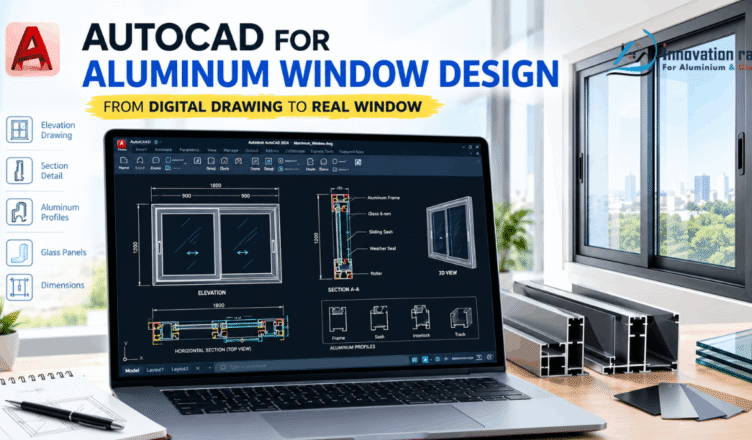
Every great window starts as a drawing. Before any metal is cut, someone must plan every line, angle, and gap.
That is where AutoCAD for aluminum window design becomes a powerful skill. It turns a rough idea into a precise plan that a workshop can build.
You may feel nervous about technical software. However, you do not need an engineering degree. This guide explains AutoCAD for aluminum window design in plain language, one small step at a time.
By the end, you will understand the tools, the workflow, and the mistakes to avoid. Therefore, you can start drawing with confidence.
What Is AutoCAD for Aluminum Window Design?
AutoCAD is a computer-aided design (CAD) program made by Autodesk. It lets you draw accurate 2D plans and 3D models on a computer.
AutoCAD for aluminum window design means using this software to plan every part of a window before production. Each line represents a real piece of metal or glass. Therefore, the drawing becomes a blueprint that a workshop can follow.
Think of it as a digital drafting table. However, this table never smudges, and it lets you undo any mistake.
Many beginners assume CAD is only for engineers. In reality, window drawings mostly use simple commands. For example, LINE, RECTANGLE, OFFSET, and TRIM cover most of the work.
A complete window project usually includes:
- Elevation drawings: the front view of the finished window.
- Section drawings: a slice through the frame that shows the exact profile shapes.
- Shop drawings: detailed plans with dimensions, notes, and finishes.
- Cut lists: a table with the length and cut angle of every aluminum piece.
- Client drawings: clean PDF plans that customers can approve.
Paper drawings work, but changes mean erasing and redrawing. In contrast, AutoCAD lets you edit any line in seconds. As a result, repeat jobs become far faster.
Moreover, AutoCAD saves files in the DWG format. Most suppliers, architects, and fabricators use it. Therefore, sharing your work is easy.
Do you need to be tech-savvy? No. You only need patience and steady practice.
Why Precise Drawings Matter for Aluminum Windows
Aluminum is strong, light, and long-lasting. However, it is also unforgiving. A piece cut 3 mm too short cannot be stretched to fit.
Precision is therefore not a luxury. It protects your money, your time, and your reputation.
1. Less material waste. Aluminum profiles are expensive and usually sold in fixed lengths, often around 6 meters. A single wrong measurement can ruin a full bar.
Accurate plans help you avoid these losses. Furthermore, they let you plan cuts so each bar is used efficiently.
2. A perfect fit. Windows must fit the wall opening with small, controlled gaps. Too tight, and the frame will not install. Too loose, and air and water leak in.
Good drawings account for these details:
- Glazing clearance: the gap between glass and frame.
- Sash deductions: the size difference between frame and sash.
- Gasket space: room for weather seals.
- Expansion allowance: aluminum expands and contracts with heat.
3. Clear communication. A drawing is a shared language. Your client sees exactly what they are buying. Your workshop sees exactly what to build.
Without clear plans, people rely on verbal instructions. However, verbal instructions are easily misunderstood. Therefore, disputes and rework become common.
4. Faster quotes and more jobs. When you produce a clean drawing quickly, you can send a quote the same day. Consequently, you look more reliable than competitors who send rough sketches.
5. A protected reputation. Every error that reaches the job site costs you twice. First, you pay for the mistake. Second, you risk losing the customer’s trust.
This is why learning AutoCAD for aluminum window design pays off so quickly. It replaces guesswork with clear, checkable information.
What You Need Before You Start

You do not need a fancy studio. However, a few basics make learning much smoother.
Here is your starter checklist:
- A capable computer that runs AutoCAD without lag.
- A licensed copy of AutoCAD or a trial version.
- Your supplier’s profile catalog with exact dimensions.
- A basic grasp of window vocabulary.
- A small first project to practice on.
Hardware and Software Basics
Most window drawings are 2D. Therefore, you do not need a gaming-level machine.
Always confirm current system requirements on Autodesk’s official website. As a general guide, look for these features:
- Processor: a modern Intel Core i5 or AMD Ryzen 5, or better.
- Memory: at least 8 GB of RAM, though 16 GB is more comfortable.
- Storage: a solid-state drive for faster loading.
- Mouse: one with a scroll wheel for easy zooming.
- Backup: an external drive or cloud storage.
AutoCAD is sold by subscription. In addition, Autodesk usually offers a free trial and education licenses. Prices change often, so check the official site.
If cost is a concern, try AutoCAD LT. It is a lighter, cheaper version focused on 2D drafting. You can also practice basic habits in free tools like LibreCAD.
Finally, ask your aluminum supplier for profile catalogs and DWG files. Many share them for free. As a result, you avoid redrawing every profile from scratch.
Key Window Terms in Plain English
Every trade has its own language. However, window terms are simple once you see them in context.
- Frame: the outer border fixed to the wall opening.
- Jamb: the vertical sides of the frame.
- Head and sill: the top and bottom parts of the frame.
- Mullion: a bar that divides two window sections.
- Sash: the moving part that holds the glass.
- Track: the channel a sliding sash moves along.
- Glazing bead: a small strip that holds the glass in place.
- Gasket: a rubber seal that blocks air and water.
- Profile: the cross-section shape of an aluminum extrusion.
- Mitered corner: a corner joined with two 45-degree cuts.
- Deduction: the amount subtracted from an opening size to get a part size.
- Tolerance: the small allowed difference in a measurement.
For example, “sash deduction of 30 mm” means the sash is 30 mm smaller than the opening. Therefore, these terms make catalogs far easier to read.
Common Aluminum Window Types and Their Parts
Different windows need different drawings. However, they all share the same logic: a frame, glass, and sometimes a moving sash.
- Sliding windows: sashes glide sideways on tracks. Parts include rollers, an interlock, and a lock.
- Casement windows: sashes swing outward on hinges. Drawings must show swing direction and hardware.
- Fixed windows: they do not open. They only need a frame, beads, gaskets, and glass.
- Awning windows: they hinge at the top and open outward, even during light rain.
- Tilt-and-turn windows: they tilt or swing inward using multi-point hardware.
| Window Type | Opening Style | Difficulty to Draw |
| Fixed | Does not open | Easiest |
| Sliding | Slides sideways | Easy |
| Casement | Swings outward | Moderate |
| Awning | Hinges at top | Moderate |
| Tilt-and-turn | Tilts and swings inward | Advanced |
For beginners, a two-panel sliding window is the best first project. It has few parts and teaches the core skills.
Always download the supplier’s profile catalog. It lists the exact dimensions of every extrusion.
Setting Up AutoCAD for Aluminum Window Design
A good setup saves hours later. Many beginners skip this step. However, that shortcut creates messy files and costly errors.
Proper setup for AutoCAD for aluminum window design covers units, limits, and layers. Then you save everything as a template.
Units and Limits
Most aluminum window makers use millimeters. Follow these steps:
- Type UNITS and press Enter.
- Set the Type to Decimal.
- Set precision to zero decimals.
- Set the insertion scale to millimeters.
- Click OK.
Always check units first. Otherwise, your window could be far too large or small.
Next, type LIMITS. Enter 0, 0, and 5000, 3000. Then type ZOOM, followed by A.
Remember that you always draw at real size (1:1). Scale only matters when you print. Common print scales are 1:20 for elevations and 1:5 for details.
Layers and Templates
Layers work like clear sheets stacked on top of each other. Each sheet holds one type of information.
You can hide, lock, or recolor any layer instantly. As a result, complex drawings stay clean.
| Layer Name | Purpose | Suggested Color |
| Frame | Aluminum frame profiles | White |
| Sash | Moving panels | Cyan |
| Glass | Glazing | Blue |
| Hardware | Handles, locks, rollers | Magenta |
| Dimensions | Measurements | Green |
| Text | Notes and labels | Yellow |
| Centerlines | Reference lines | Red |
Use clear names. For instance, avoid vague names like “Layer1.”
Once your setup is ready, click File, then Save As. Choose AutoCAD Drawing Template (*.dwt) and name it “Aluminum Window Template.”
Consequently, every new project starts with your settings in place. This habit makes AutoCAD for aluminum window design far more efficient.
Step-by-Step: Drawing Your First Aluminum Window
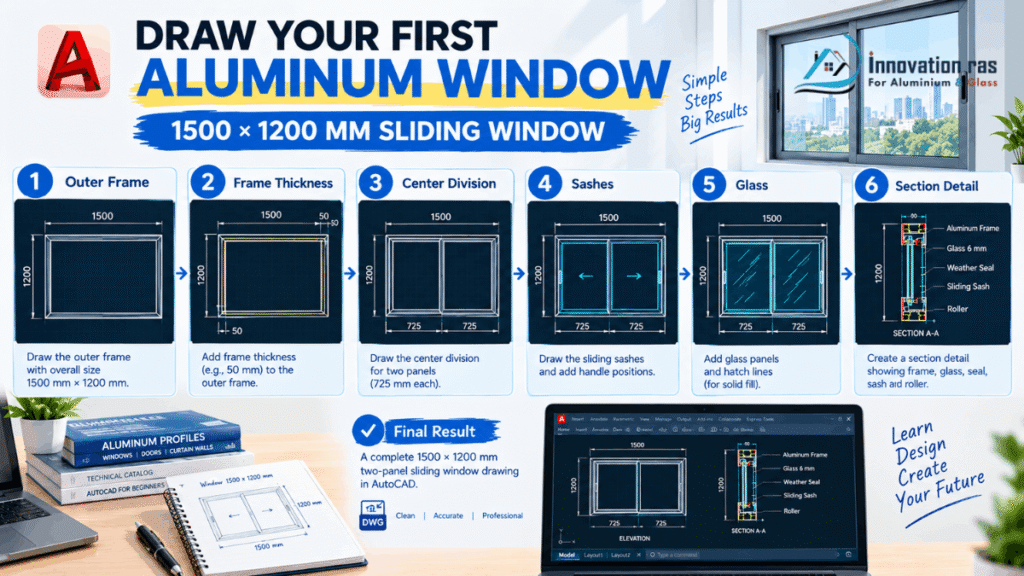
Let us draw a two-panel sliding window, 1500 mm wide by 1200 mm high. The profile widths below are examples. Replace them with values from your supplier’s catalog.
First, open your template. Then turn on Object Snap (F3) and Ortho Mode (F8).
Step 1: Draw the outer frame. Set the Frame layer. Type RECTANGLE, then 0,0, then @1500,1200.
Step 2: Create the frame thickness. Type OFFSET and enter 50. Click the rectangle, then click inside it.
Step 3: Divide the opening. Use LINE and snap to the midpoints of the top and bottom inner edges. Move this line to the Centerlines layer.
Step 4: Add the sashes. Offset the inner edges and center line by the sash width, such as 40 mm. Then use TRIM to clean up crossing lines.
Step 5: Draw the glass. Offset the sash edges inward by the glazing clearance, such as 10 mm. Move these lines to the glass layer.
Step 6: Draw the cross-section. Zoom into a corner. Draw or paste the exact profile shape at 1:1. If your supplier provides DWG files, use COPY and PASTE.
Step 7: Check your work. Use DIST to measure key sizes. Also confirm every line sits on the correct layer.
You now have an elevation and a basic section. Therefore, you have practiced the core skills of AutoCAD for aluminum window design.
Pro tip: press Enter to repeat your last command.
Adding Dimensions, Notes, and Hardware Details
A drawing without dimensions is only a picture. Dimensions turn it into a buildable plan.
First, type DIMSTYLE and create a style. Set readable text, small arrows, and millimeter units. Save it in your template.
Use these commands on the Dimensions layer:
- DIMLINEAR for horizontal and vertical sizes.
- DIMCONTINUE to chain dimensions neatly.
- DIMBASELINE to measure from one starting point.
Always show these key dimensions:
- Overall width and height.
- Sash sizes.
- Glass sizes.
- Wall opening size.
- Handle height.
Next, add notes with MTEXT. Include the finish, color code, glass type, glass thickness, and quantity.
On the hardware layer, draw handles, locks, rollers, and hinges. Manufacturers often provide hardware DWG blocks. Download them whenever possible.
Use MLEADER to point at specific parts, such as the glazing bead. Finally, create a title block with the project name, date, revision, scale, and your logo.
Above all, check every dimension before you send the drawing out.
Using Blocks to Save Time
Drawing the same handle again and again wastes hours. Blocks solve this problem.
A block is a saved group of objects that acts as one item. You draw it once and reuse it endlessly.
Blocks bring clear benefits:
- Speed: no redrawing common parts.
- Consistency: every drawing uses identical details.
- Easy updates: edit the block once, and every copy updates.
To create one, type BLOCK and enter a name like “Handle_Sliding.” Pick a base point, select the objects, and click OK. Then use INSERT to place it anywhere.
Dynamic blocks go further. They include stretch controls, so one window block can resize to any width or height. Open the Block Editor with BEDIT, then add a linear parameter and a stretch action.
This is one of the biggest time-savers in AutoCAD for aluminum window design. Shops with repeat orders benefit the most.
From Drawing to Cut List and Fabrication
A finished drawing must guide the workshop. Therefore, you need a clear-cut list.
A good cut list includes:
- Item number matching the drawing.
- Profile code from the supplier.
- Description, such as “Frame head.”
- Cut length and cut angle.
- Quantity and finish.
Frames usually have 45-degree mitered corners. Sashes often use 90-degree cuts. However, confirm this in your supplier’s fabrication manual.
Deductions matter here. Suppliers publish exact values for each system. Never guess them.
The DATAEXTRACTION command exports lengths and quantities to a spreadsheet. However, you still need supplier deductions to finish the list.
To reduce waste, group identical profiles and keep useful offcuts. Also add the saw blade thickness to your calculations.
Finally, export your files. Use PDF for clients, DWG for suppliers, and Excel or CSV for cut lists. Print a test copy first.
Common Beginner Mistakes to Avoid
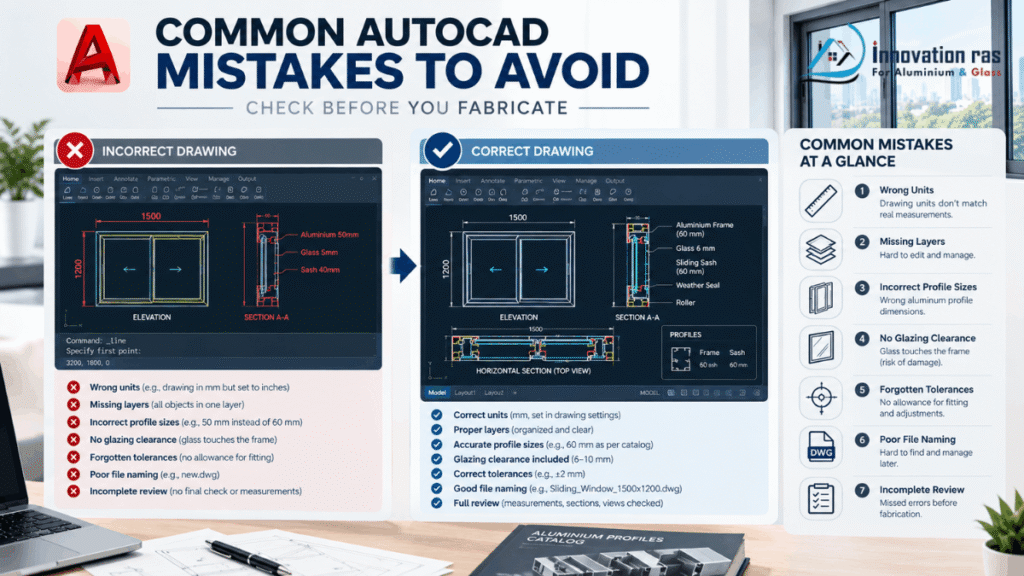
Everyone makes mistakes at first. However, you can avoid the most common ones.
- Wrong units. Always check before you start.
- Skipping layers. Your drawing becomes messy.
- Guessing profile sizes. Use real catalog dimensions.
- Ignoring glazing clearance. Glass then fails to fit.
- Forgetting tolerances. Installation becomes difficult.
- Not saving often. Turn on auto-save and keep backups.
- Overcomplicating early drawings. Start simple.
- Skipping the final review. A five-minute check can save a day of rework.
- Poor file names. Use a system like “Client_WindowType_Date_Rev1.”
Tips for Small Business Owners
If you run a small fabrication shop, AutoCAD can transform your business. However, you must use it wisely.
- Build a library of standard windows. Most customers order similar sizes.
- Create branded templates. Consequently, your quotes look professional.
- Send PDFs before production. This prevents disputes and costly changes.
- Consider outsourcing at first. Hire a freelance drafter while you learn.
- Train your team. Workers who read drawings make fewer mistakes.
- Protect your files. Back up your template library.
Remember that AutoCAD for aluminum window design is a business tool. It should save money, not add stress.
Best Ways to Keep Learning
Fortunately, many learning resources are free:
- Autodesk’s official tutorials.
- YouTube channels on “AutoCAD 2D basics.”
- Supplier training and sample DWG files.
- Online platforms like Udemy and LinkedIn Learning.
- Local courses at colleges and training centers.
- Autodesk community forums.
Course availability changes over time. Therefore, read recent reviews before you enroll.
Try this two-week plan:
- Days 1 to 3: Learn the interface, units, and layers.
- Days 4 to 6: draw a fixed and a sliding window.
- Days 7 to 9: practice dimensions and title blocks.
- Days 10 to 12: create blocks.
- Days 13 to 14: build a cut list and export a PDF.
You will feel clumsy at first. However, the commands soon become natural.
Conclusion
Learning AutoCAD for aluminum window design is easier than it looks. You only need the right setup, simple commands, and steady practice.
Start with units, layers, and a basic sliding window. Then add dimensions, blocks, and cut lists as your confidence grows.
Accuracy protects your budget and your reputation. Furthermore, professional drawings help you win client trust.
So open the software today and draw your first frame. With patience, AutoCAD for aluminum window design will become one of your most valuable skills.
FAQs
1. Is AutoCAD good for aluminum window design?
Yes. It offers precise 2D drafting, reusable blocks, and easy dimensioning. Therefore, it suits elevations, sections, and shop drawings very well.
2. Can a complete beginner learn AutoCAD for aluminum window design?
Absolutely. Start with LINE, OFFSET, and TRIM. Within a few weeks, most beginners can draw simple windows.
3. How long does it take to learn?
Basic drawings usually take two to four weeks of daily practice. Advanced skills, like dynamic blocks, take longer.
4. Do I need 3D skills?
No. Most shop drawings use 2D views. However, 3D models can help you present designs to clients.
5. Is AutoCAD LT enough?
Often, yes. It covers 2D drafting well. However, compare both versions on Autodesk’s website.
6. Where can I get aluminum profile drawings?
Ask your aluminum system supplier. Many provide free DWG files, catalogs, and fabrication manuals.
7. What is the best first project?
A two-panel sliding window. It has few parts and teaches all the core skills.
8. Are there cheaper alternatives?
Yes. LibreCAD and DraftSight can open DWG files. However, AutoCAD remains the industry standard.
9. Can AutoCAD create cut lists automatically?
Partly. DATAEXTRACTION exports lengths and quantities. However, you still need supplier deduction values.
10. What is the most common beginner mistake?
Guessing profile sizes or using the wrong units. Always check units and use exact catalog dimensions.
11. Can I use AutoCAD for aluminum window design on a laptop?
Yes. A modern laptop with 8 to 16 GB of RAM handles 2D window drawings comfortably.
12. How do I share drawings with clients?
Export a PDF with PLOT. Send DWG files only to suppliers or workshops that need to edit them.
One thought on “AutoCAD for Aluminum Window Design: 10 Easy Tips”